Configure SPI
Go to Host interfaces > SPI
Parameters
Go to Parameters tab.
Click button Add parameter Host -> Anybus.
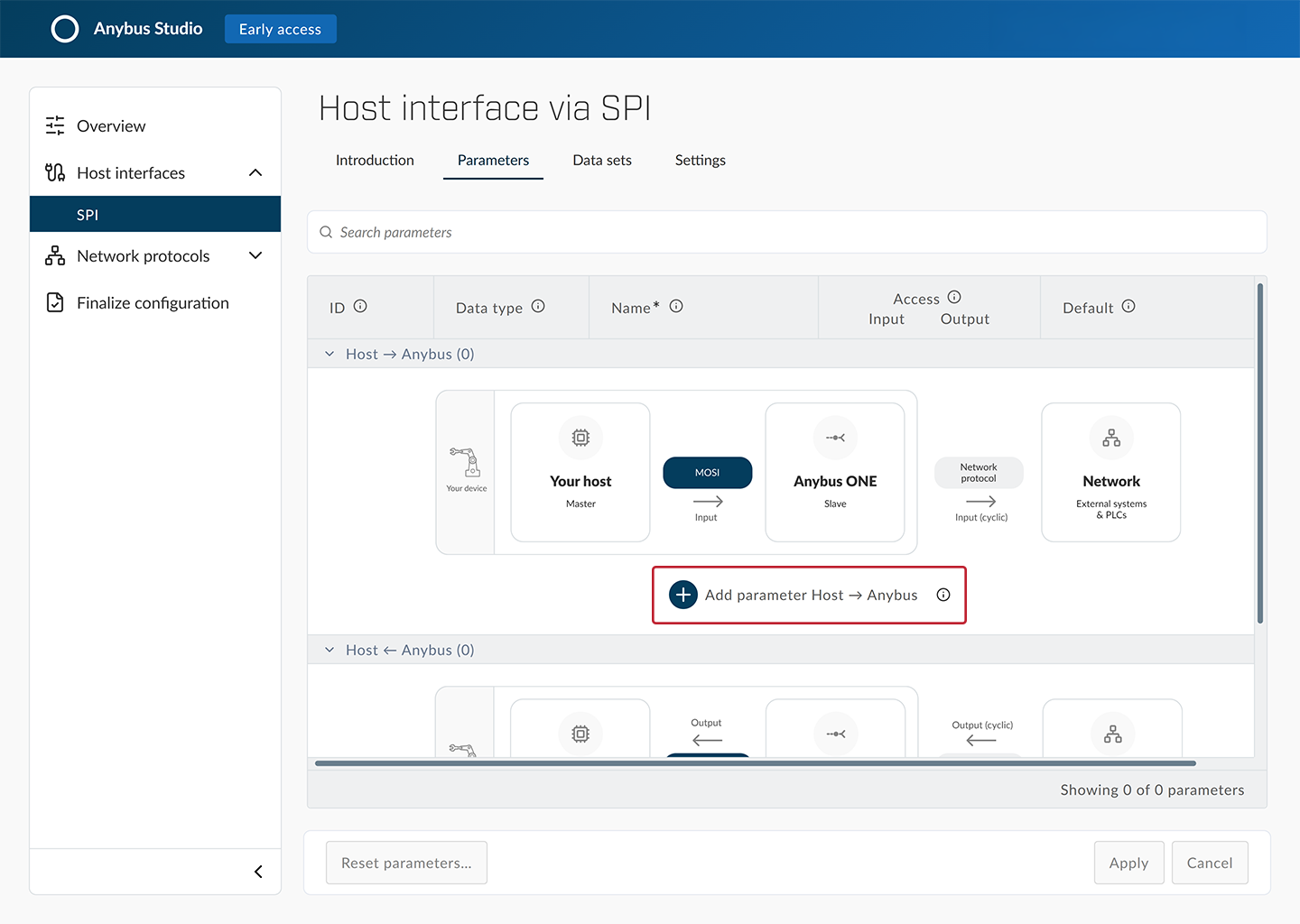
Enter the following values:
Data Type
Name
Default
UINT16
Status
-
UINT16
Actual Speed
-
Click button Add parameter Host <- Anybus.
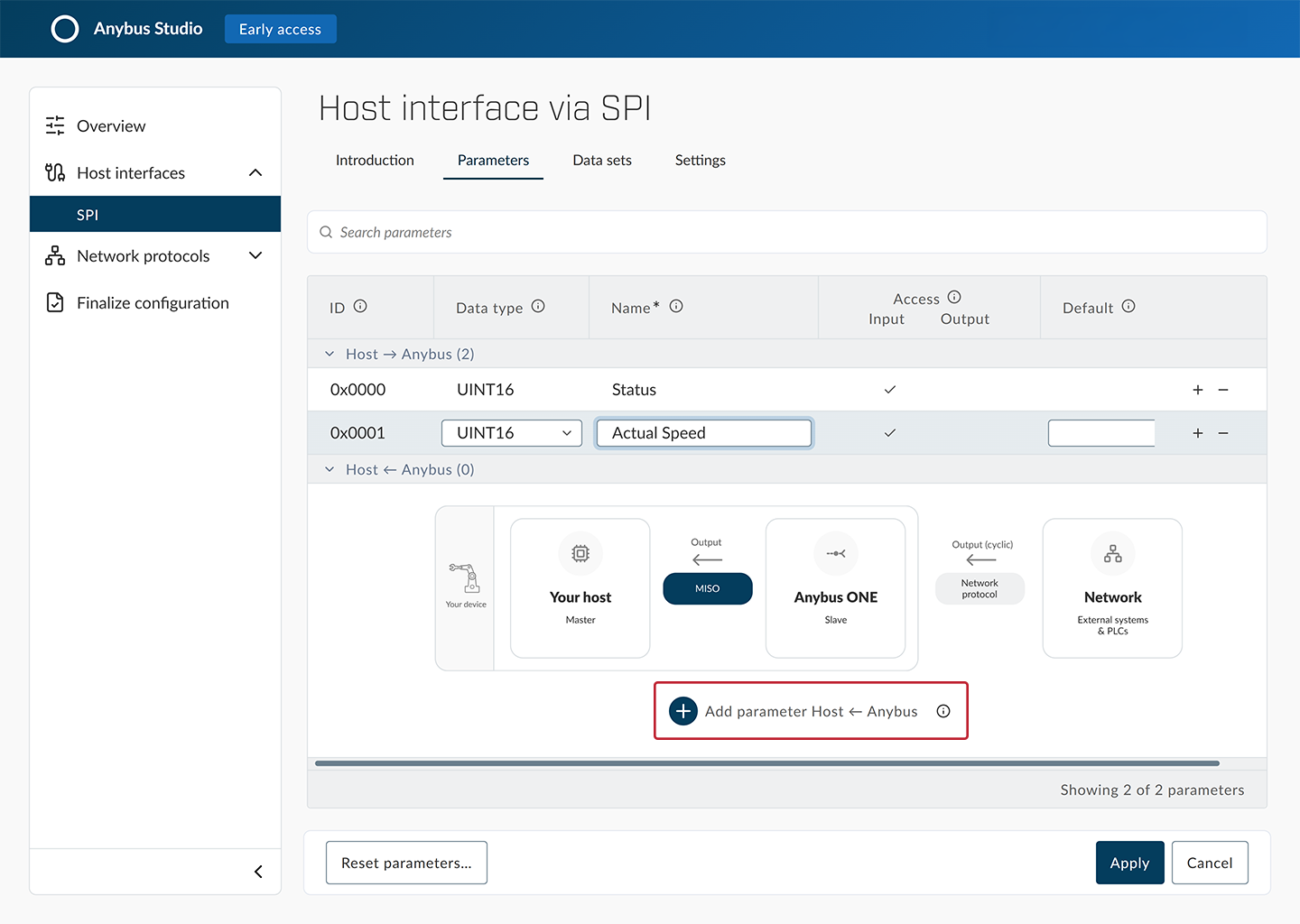
Enter the following values:
Data Type
Name
Default
UINT16
Control
0x1111
UINT16
Reference Speed
0x0000
Click button Apply .
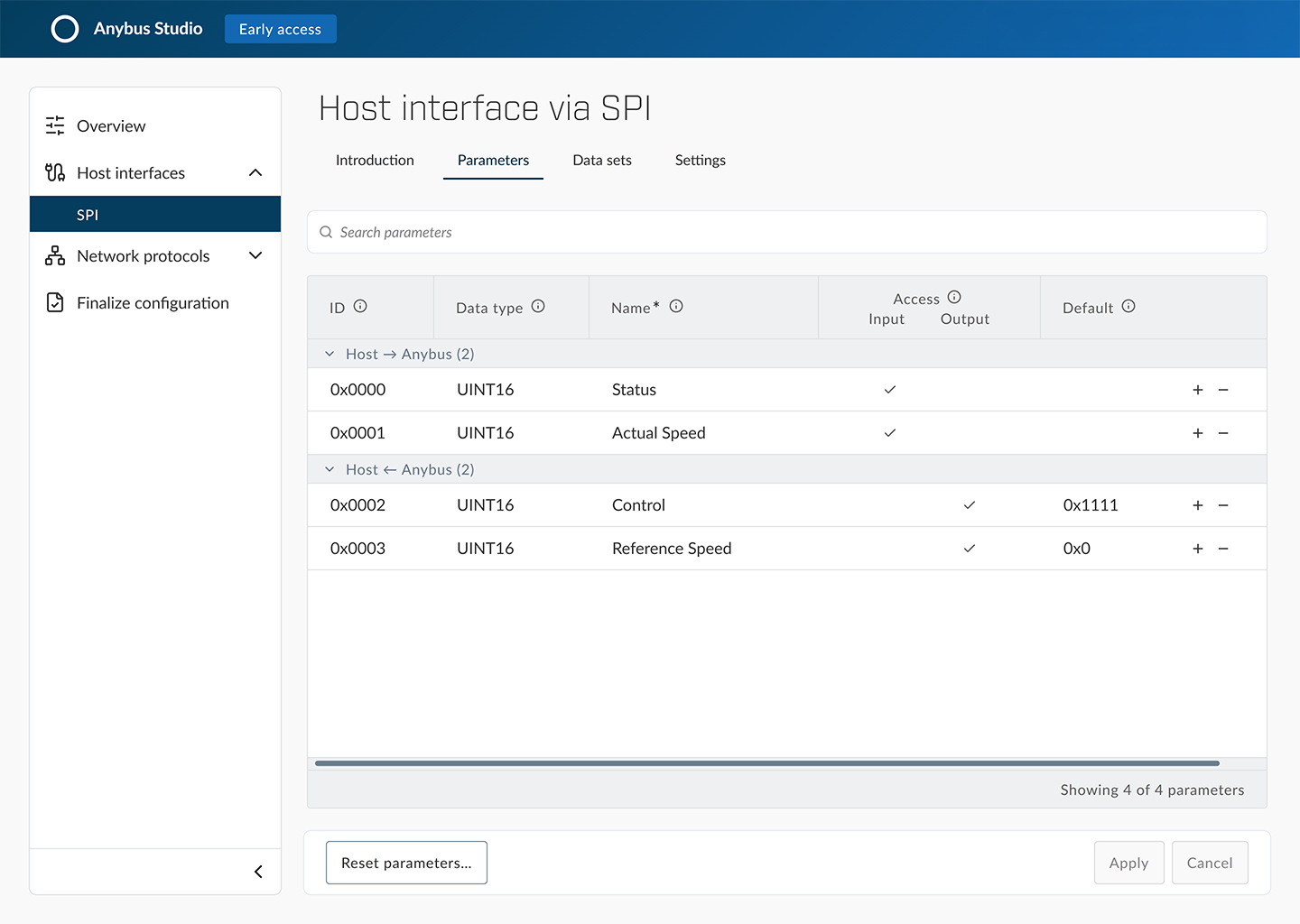
SPI Parameters example
Data sets
Go to Data sets tab.
To create a data set for the InputData, click button New Data Set.
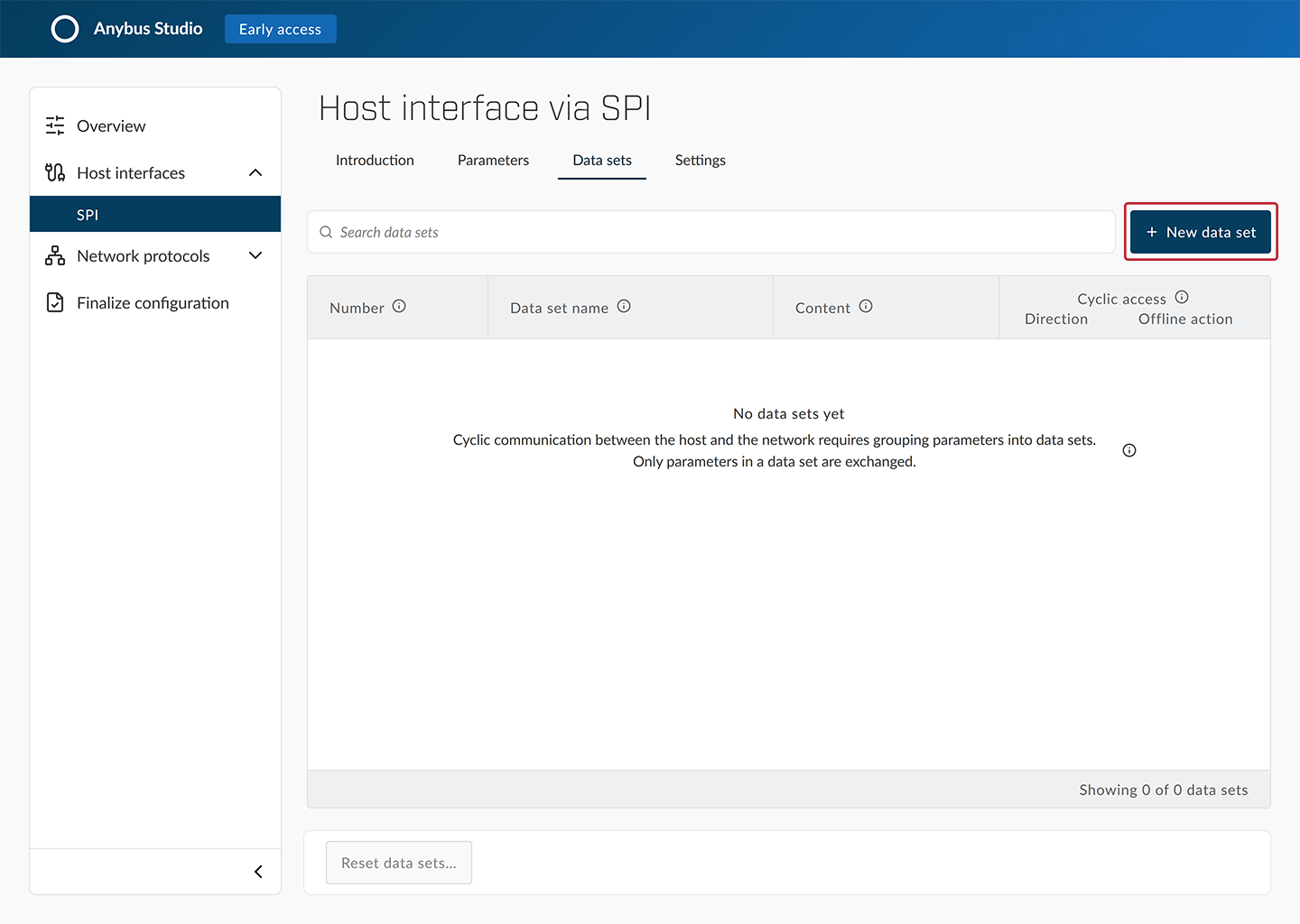
Enter the following values:
Data set name: StatusDataSet
Direction for cyclic transfer: Input
Add/edit parameters: Status, Actual Speed
To save the data set, click button Apply data set.
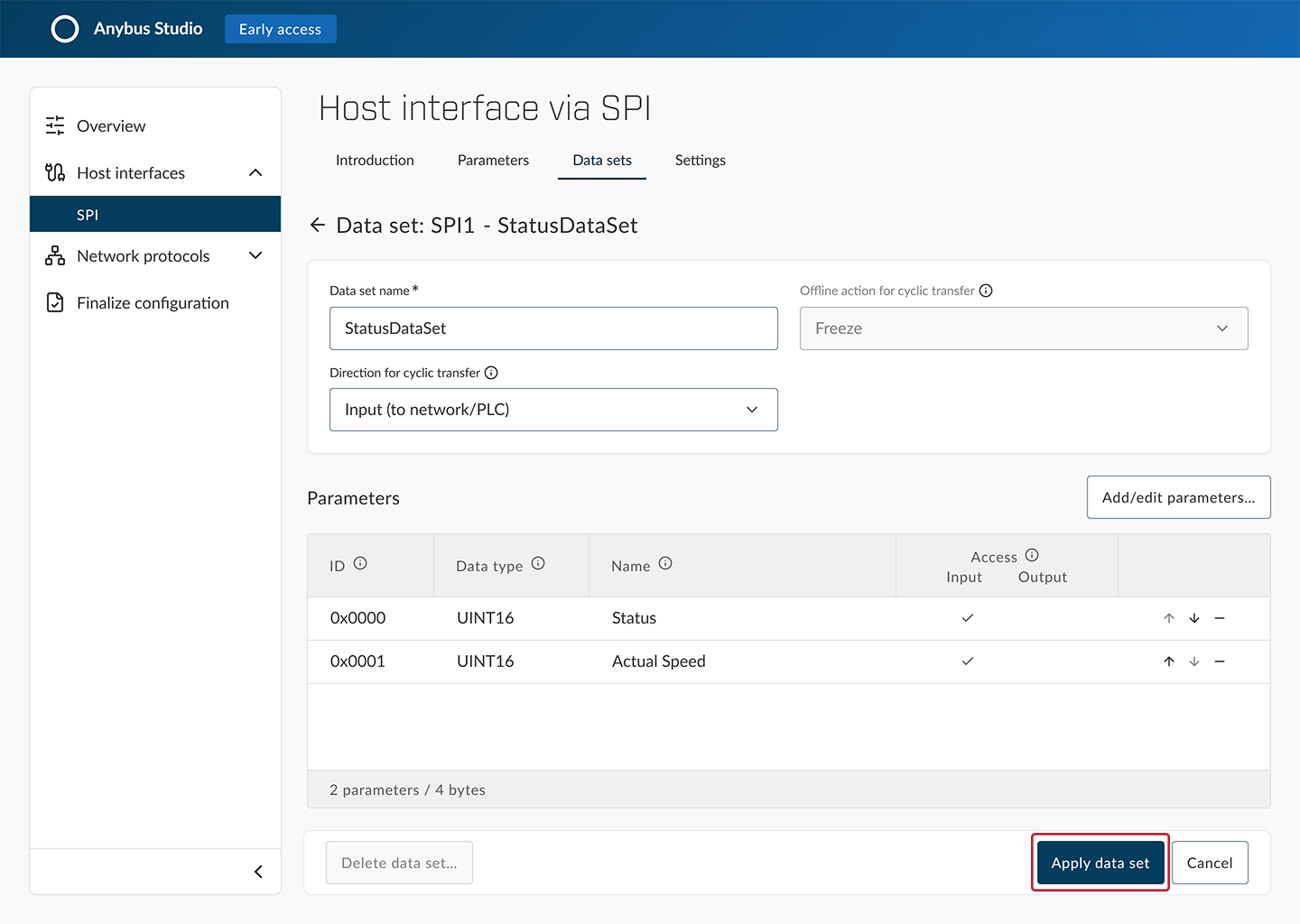
To create a data set for the OutputData, click button New Data Set.
Enter the following values:
Data set name: ControlDataSet
Direction for cyclic transfer: Output
Offline action for cyclic transfer: Use default values
Add parameters: Control, Reference Speed
To save the data set, click button Apply data set.
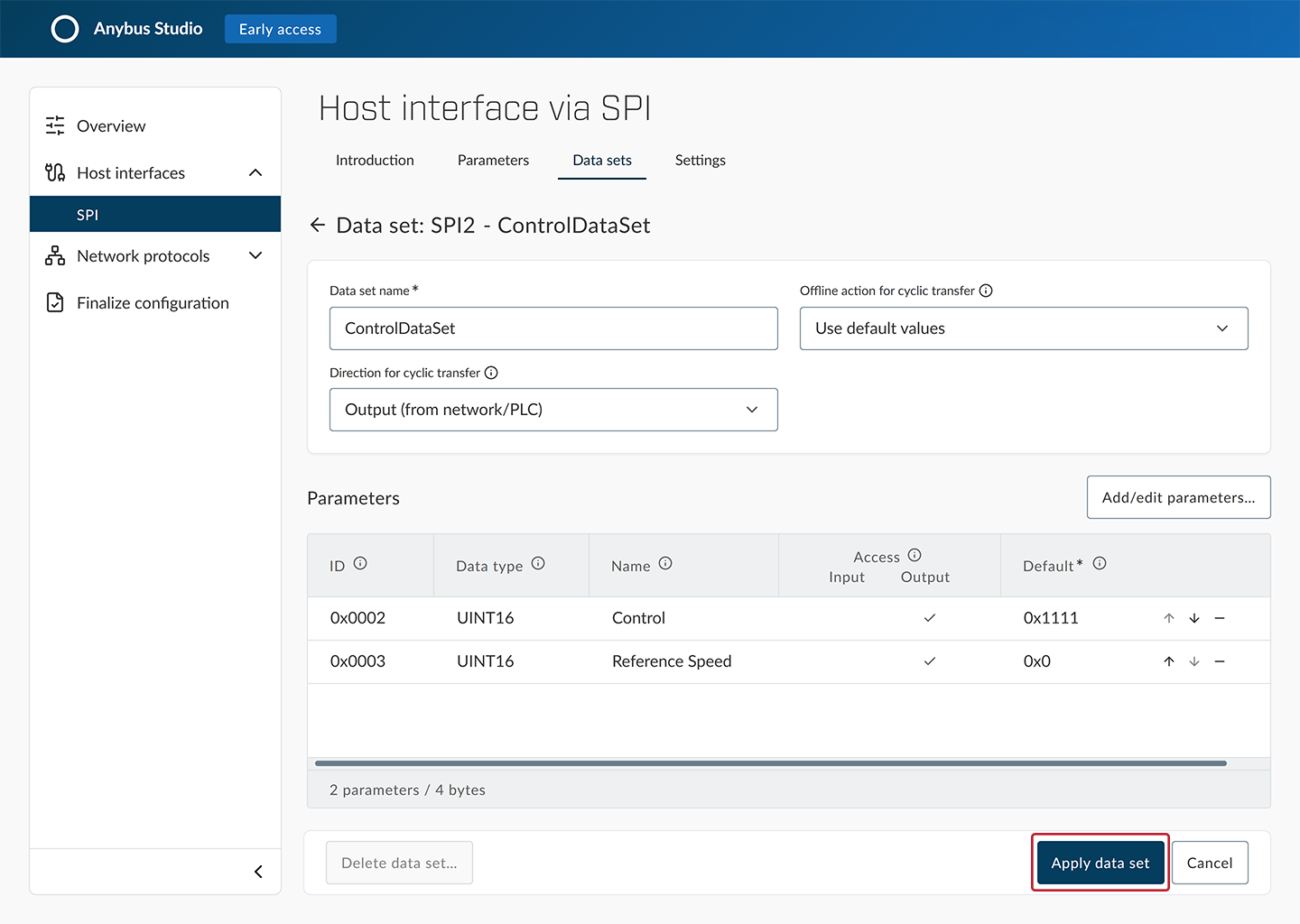
Settings
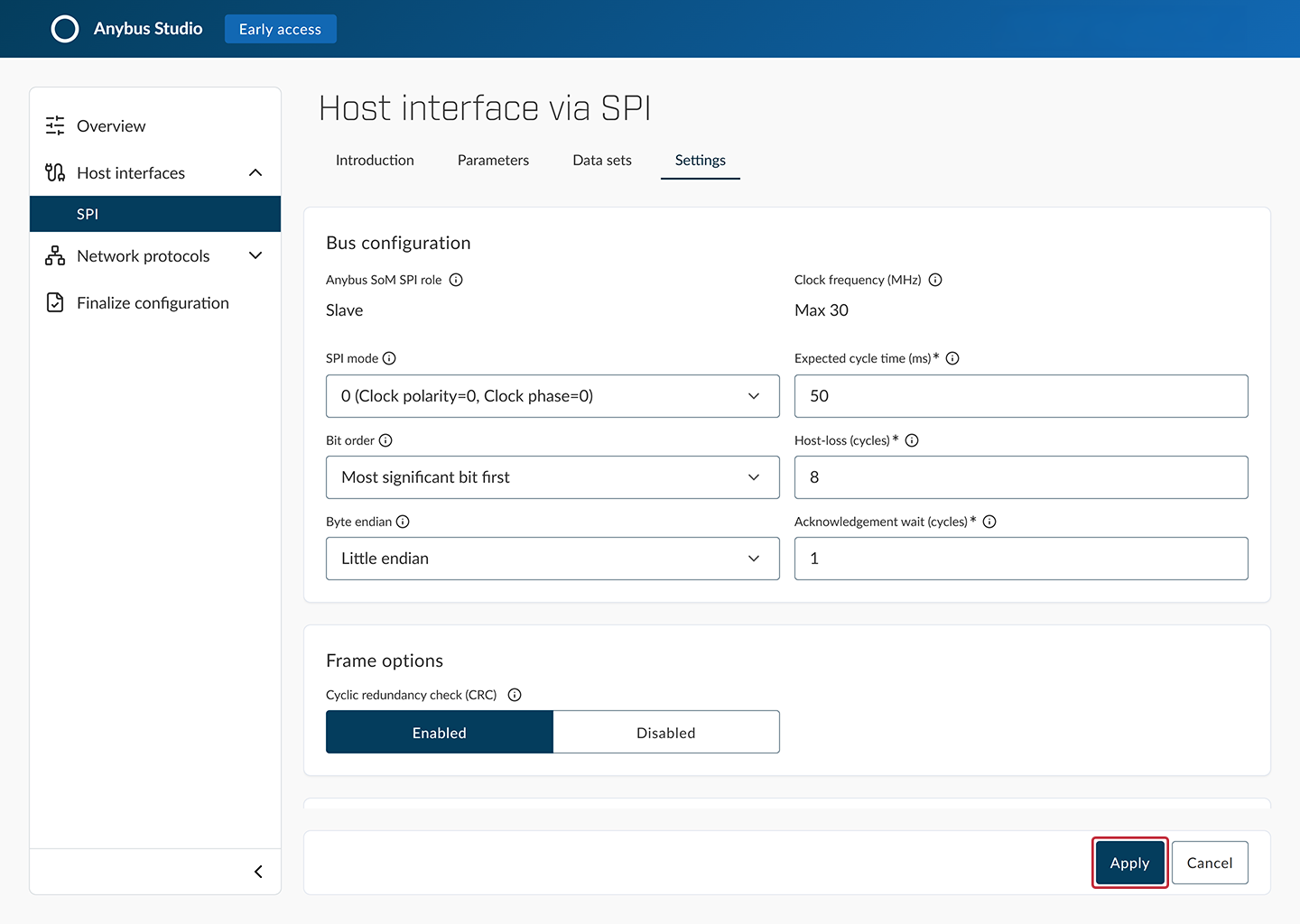
Go to Settings tab.
Configure the bus configuration:
SPI mode: 0
Expected cycle time: 50
Bit order: Most significant bit first
Host-loss: 8
Byte endian: Little endian
Acknowledgment wait: 1
Frame options:
Cyclic redundancy check: Enabled
Click button Apply .
To do next
Configure PROFINET for SPI, see Configure PROFINET - SPI.