Set up PROFINET simulation
Set up a PROFINET master simulator on your PC to exchange data with the Evaluation Board. Install the simulator, then configure it using the GSDML file generated for the configuration installed on the Evaluation Board SoM.
Install PROFINET Master Simulator
Before you begin
PROFINET Master Simulator license information
This download and installation require a single‑user trial license.
A 30-day trial license coupon code is included in the product package.
Ensure that you have access to a valid license document containing a download link and license data.
Download installation files
Go to the Master Simulator software download page.
Enter the Coupon code and follow the instructions.
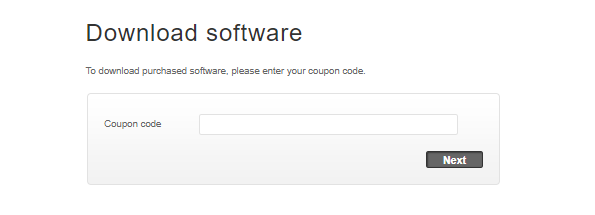 Figure 13. Software download for Master Simulator page
Download the installation zip file.
Install software
Extract the installation zip.
Run Install.exe.
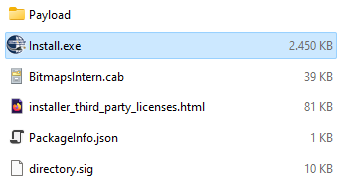 Figure 14. PROFINET Master Simulator installation files
Select the option and continue.
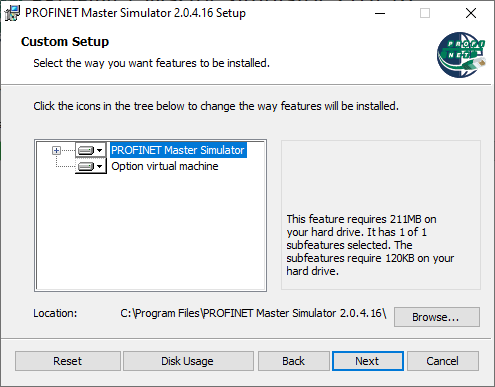 Figure 15. Custom Setup - Standard Installation
Follow the instructions to complete the installation.
Activate software license
 |
Start the PROFINET Master Simulator.
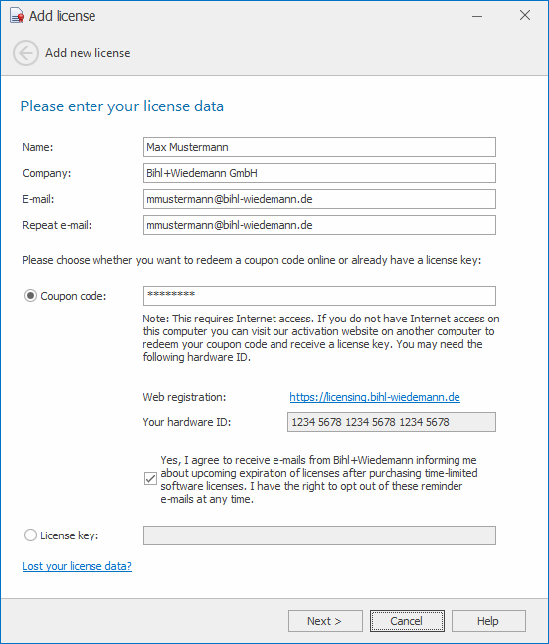
On first startup, the Add license window opens and informs you that no valid license was found.
Click to add a new license,
Enter your license data and confirm.
Configure PROFINET Master Simulator
Configure the PROFINET Master Simulator to communicate with the Anybus ONE Evaluation Board.
Before You Begin
Ensure the following:
The computer network interface and the Evaluation Board belong to the same IP subnet.
The HMS PROFINET Master Simulator is installed and licensed.
The Evaluation Board is powered and connected to the computer.
You have a GSDML file associated with your Anybus ONE SoM that contains the configured PROFINET device description.
To configure the PROFINET master simulator for the SPI demo, use the GSDML file: GSDML-V2.46-HMS-ONE EVK SPI Demo-20260101.
To configure the PROFINET master simulator for the Modbus RTU demo, use the GSDML file, GSDML-V2.46-HMS-ONE EVK Modbus Demo-20260101.
Procedure
 |
Start the HMS PROFINET Master simulator.
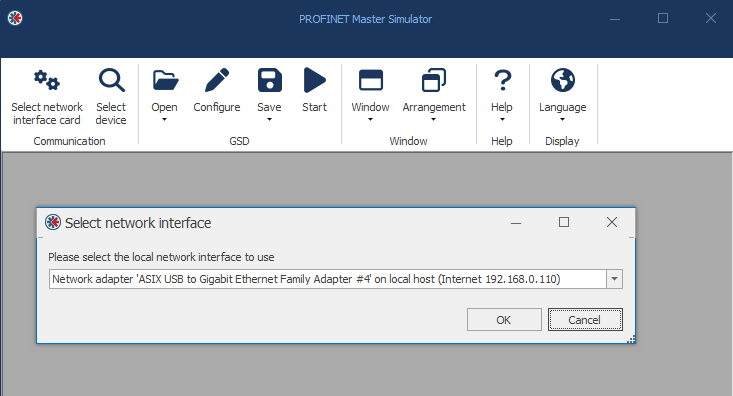
Click Select network interface card.
Select the network interface card connected to the Evaluation Board.
If the PC has only one network interface, it is selected automatically.
Important
clears the device name and IP configuration.
Tip
Use to locate the Evaluation Board. The Network Status (NS) and Module Status (MS) LEDs blink green at 1 Hz.
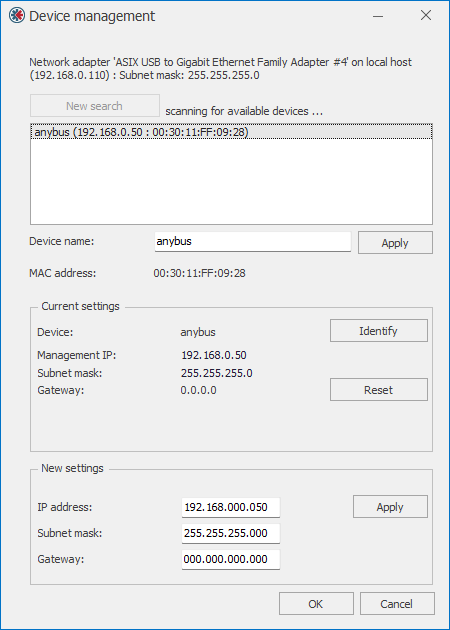 |
Click Select device to scan for connected PROFINET devices.
Select the Evaluation Board.
Configure the following network settings as needed:
Device name: Enter a unique name of the Evaluation Board (for example, “evb1”).
IP settings: Network IP settings of the Evaluation Board used for Ethernet communication.
Click Open.
Select the GSDML file.
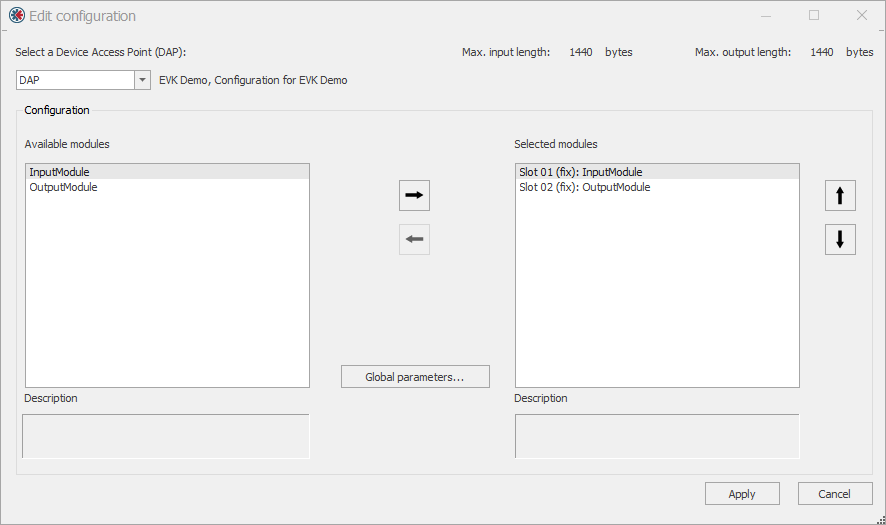 Figure 19. Edit PROFINET device configuration
The configured PROFINET modules are displayed.
Review and adjust the configured PROFINET modules:
Modules configured as Fixed in are automatically populated.
Modules configured as Allowed in must be moved from Available modules to Selected modules.
Click Apply.
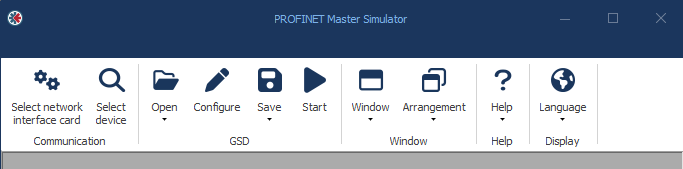
Click Start.
Wait for communication to establish.
Result
Communication is established when:
The status banner in the simulator turns green.
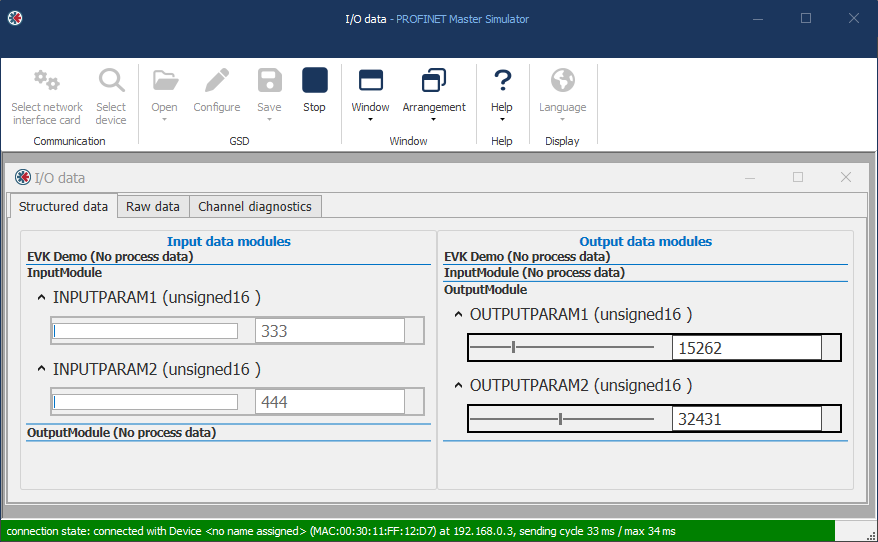 Figure 21. PROFINET communication active
The Network Status (NS) LED on the Evaluation Board turns steady green.
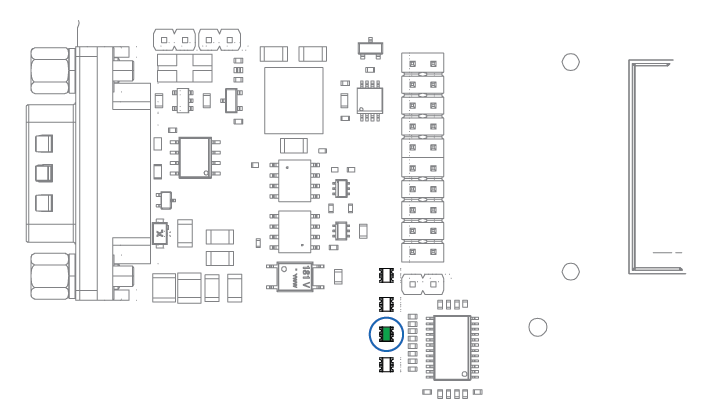 Figure 22. Evaluation Board Network Status (NS) LED
To do next
Verify data exchange between the host and network, see Verify data exchange.